4 Google Messages Settings Cut Spam, OTP Clutter and Gemini Shortcut
A writer who cleaned up a cluttered Google Messages inbox has detailed four built-in settings: Enhanced protection against spam, auto-deleting one-time passwords after 24 hours, hiding the Gemini button and turning off chat bubbles.

A writer who made Google Messages less annoying with four built-in settings published the exact steps on November 9, 2026. The changes target spam, one-time passwords, the Gemini shortcut and floating chat bubbles.
The writer describes Google Messages as a go-to texting app whose inbox still fills up fast. Promotional texts, verification codes, delivery updates and conversations pile together, so finding one important message means wading through numerous chats.
Spam filtering
Unwanted texts from unknown numbers were the biggest source of clutter, the writer said. They advertise products, push suspicious offers or try to get people to click questionable links.
The fix is Enhanced protection. Open Google Messages, tap your profile picture, then go to Messages settings > Protection & Safety > Enhanced protection.
With it on, Google Messages uses machine learning to spot suspicious messages and moves them into the Spam & blocked folder. It also warns about potentially harmful links and scams.
Messages that slip through can be reported. Open the conversation and tap Block and report spam. That blocks the sender and removes the conversation from the main inbox.
One-time passwords
One-time passwords (OTPs) were the writer's other big irritant. They arrive when you sign in, confirm a purchase or finish an online transaction, and they accumulate.
Google Messages can clear them automatically. Go to Messages settings > Message organization and turn on the option to auto-delete OTP messages after 24 hours.
The writer calls it a set-and-forget feature. Verification codes are usually temporary, so keeping dozens of expired ones serves little purpose.
Gemini button and chat bubbles
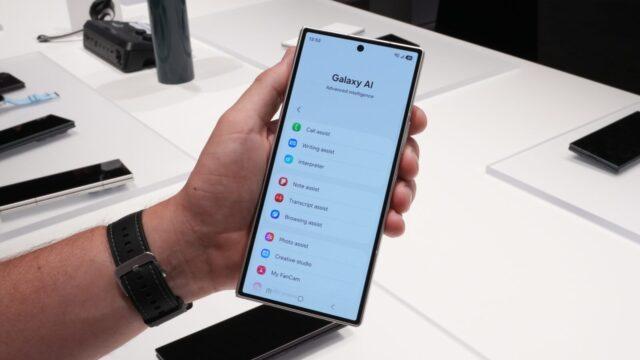
The writer also hid the Gemini shortcut, which takes up space on the main screen. They already use the standalone Gemini app and do not want an AI assistant alongside their conversations.
To remove it, go to Messages settings > Gemini in Messages and turn off the Show Gemini button option. The shortcut then disappears from the main conversation screen.
Chat bubbles were the last annoyance. These floating icons sit on top of whatever you are doing, whether browsing, watching a video or reading.
To switch them off, open Messages settings and tap Bubbles, then choose Nothing can bubble. Regular notifications still appear in the notification shade.
Users who want bubbles for only some people can choose Selected conversations can bubble instead. That keeps the feature for important contacts.